Last reviewed
How to keep score at a youth soccer game: your first time on the live tracker
Keeping score at a youth soccer game means recording every goal as it happens: which team scored, the scorer's shirt number, the minute, and the assist if there was one. Shots, saves, corners and cards are optional extras. The referee's clock and the referee's decisions are the official ones. Your job is a clean record that matches them, and on a live tracker, a record the families at home watch as you tap it.
This guide walks through a whole game on PlayHub's sideline tracker, one screen at a time, in the order you'll meet them. The screenshots are from a phone and use an invented team, PlayHub Demo FC, playing Strikers Academy FC. A short futsal note and a one-screen cheat sheet are at the end.
Before the game: open the tracker, check the roster and the clock
Open the game on your team's schedule and press Sideline tracker. If you're the game's scorekeeper, whether you volunteered or the manager put you down, the game also shows Keep score on match day. It opens the same screen.
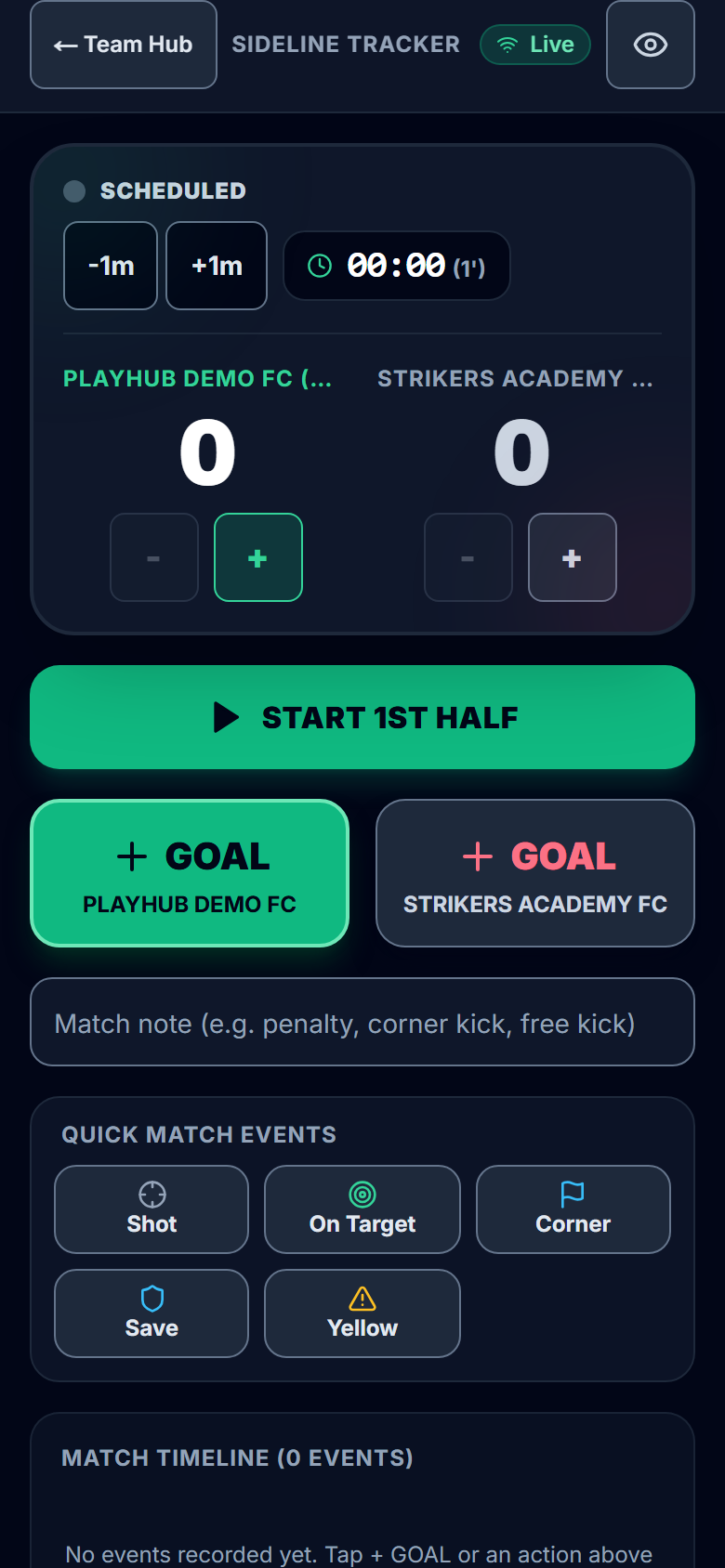
Three checks while the teams warm up:
- The pill at the top says Live. That means the phone is connected. Amber means offline (see what if the signal drops).
- Shirt numbers match the roster. Every picker lists players by shirt number and first name. Ask the coach about anyone wearing a different shirt today and fix it on the team's roster before kickoff, not after the first goal.
- The clock reads 00:00. It counts up and stays at zero until you start it.
Kickoff
Press START 1ST HALF on the referee's whistle. The clock starts, and the family page goes live at the same moment. Families who switched on match emails get one at kickoff.
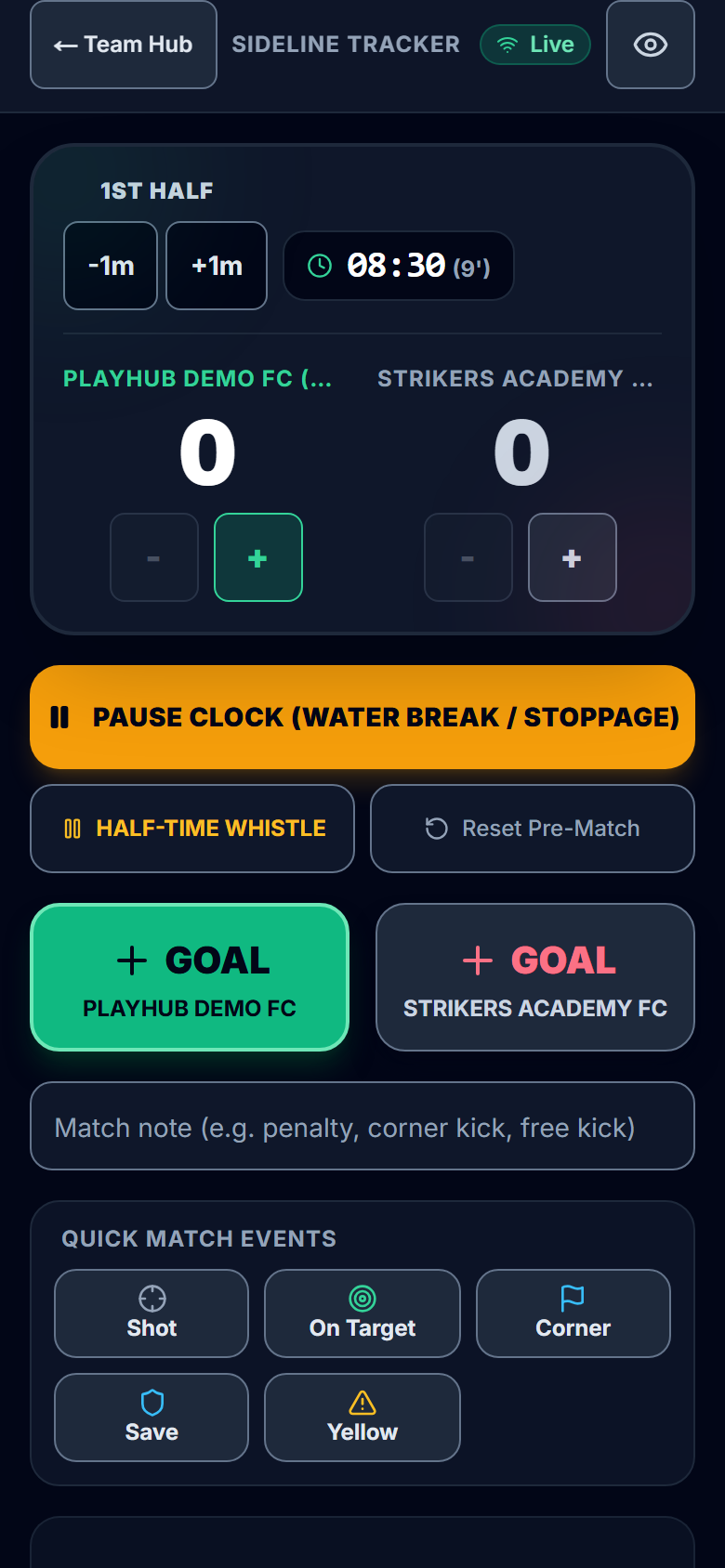
- Started late? Press +1m once for each minute you missed. -1m takes one off. The referee's clock is the real one, so match it.
- Water break or injury stoppage: PAUSE CLOCK, then RESUME 1ST HALF when play restarts. Pause only when the referee stops time.
- Pressed start by mistake? Reset Pre-Match puts the game back to before kickoff. It deletes the score and every event recorded so far, and asks you first.
Recording a goal and an assist
Two taps for the goal. Press the green + GOAL with your team's name, then the scorer's number.
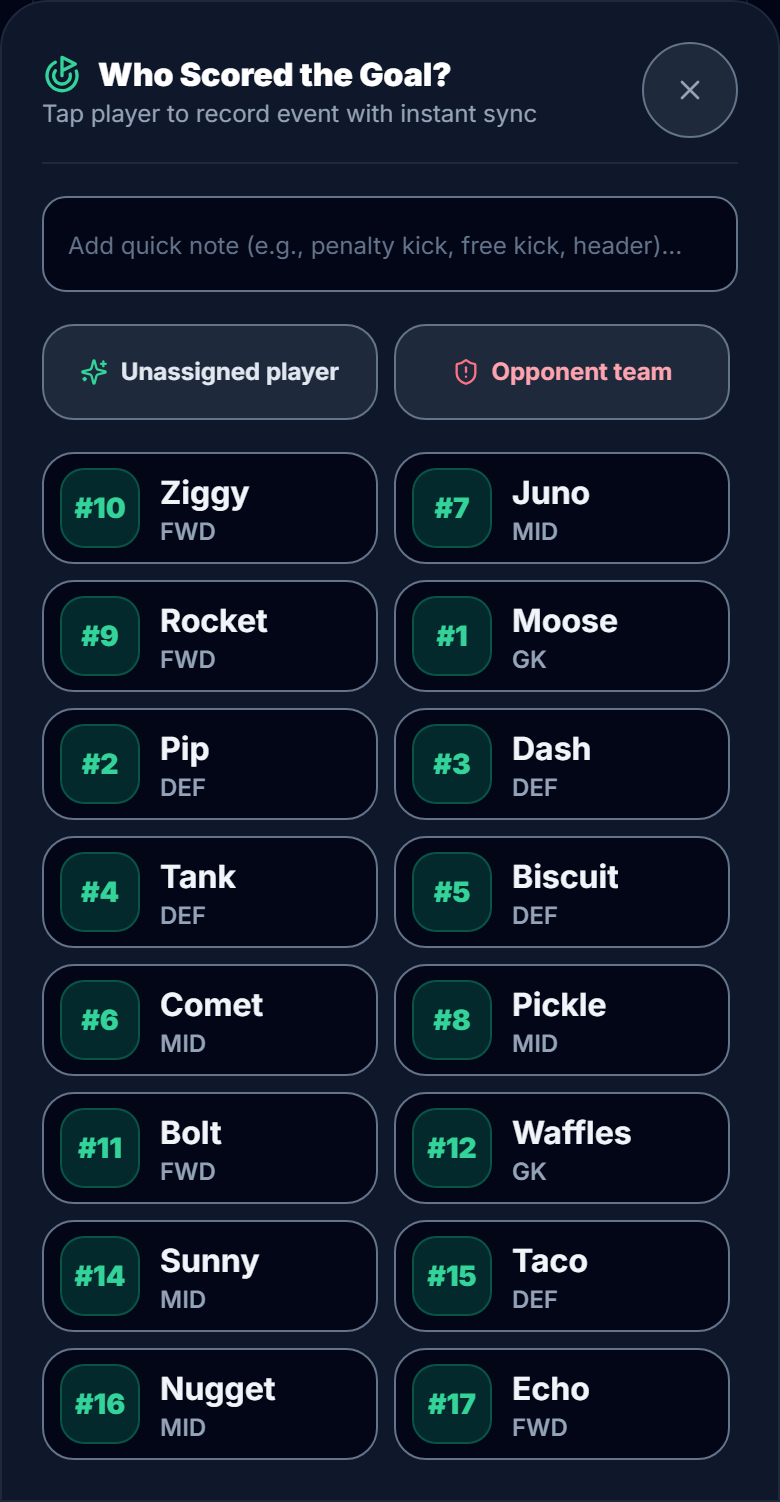
The goal is recorded and the assist question opens at the same moment. The score changes on your screen straight away, and on the family page as soon as the phone sends it. Didn't see who scored? Press Unassigned player and fix it later.
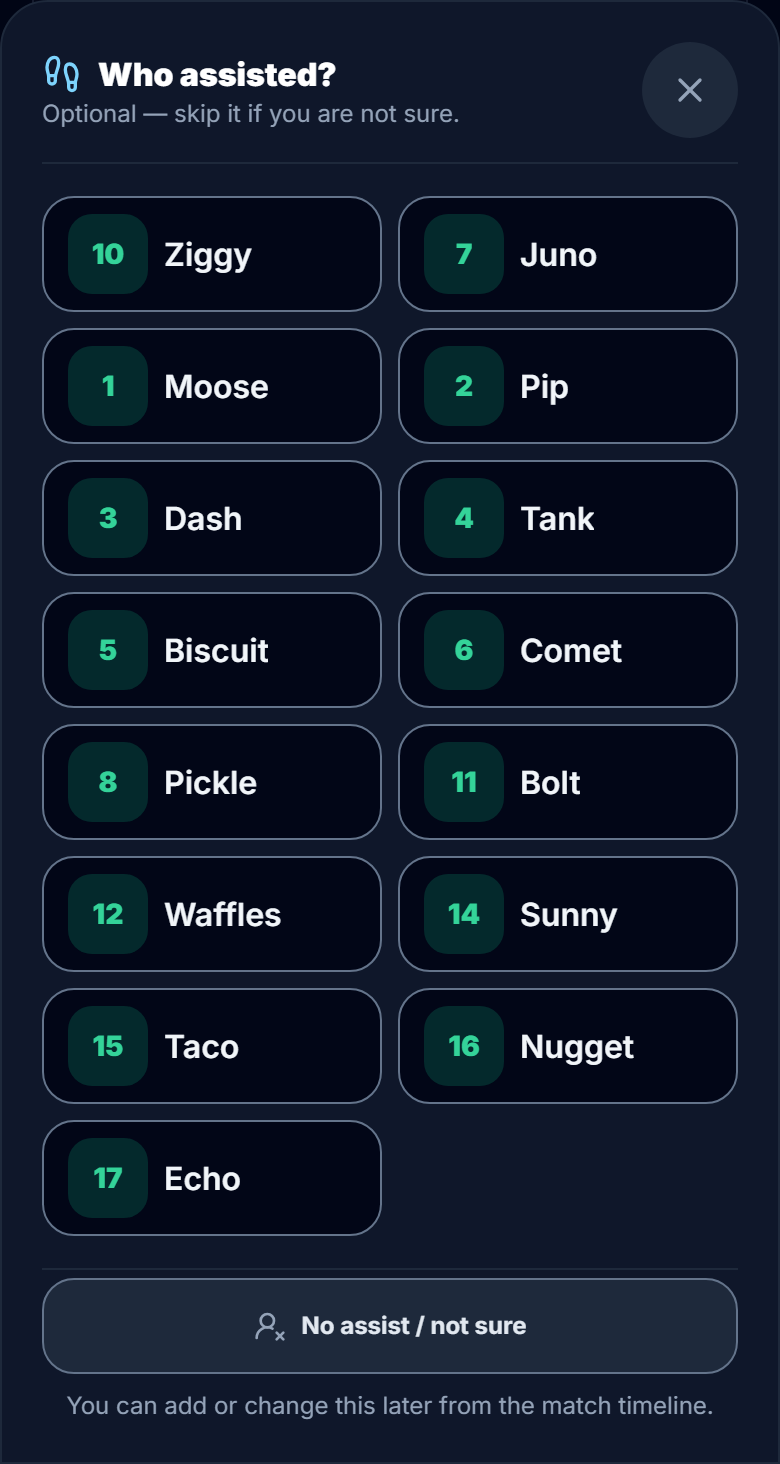
Then the tracker asks who assisted. Tap the player, or No assist / not sure. Nothing waits on the answer: the goal already counts.
A goal for the other team is one tap: the grey + GOAL with their name. You don't record their scorer.
If your phone shows a Hold to speak button above the scoring buttons, hold it, say "goal, twenty-two", let go, and press Record it to confirm. The buttons do everything the voice does.
Shots, saves and corners
These are optional. Record them if the coach wants them, and skip them if one goal at a time is all you can manage.
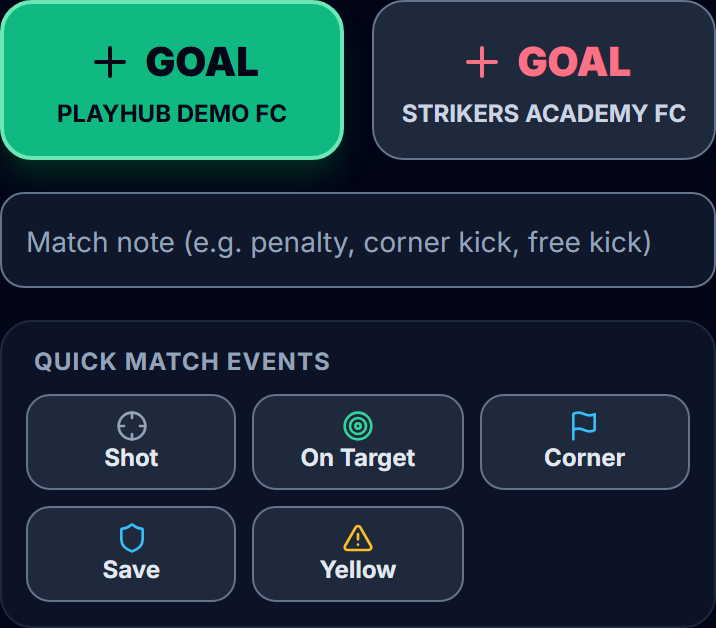
Each button opens the same picker as a goal. Tap the player, or Opponent team for theirs.
- Shot is any attempt to score. On Target is a shot that would have gone in if the goalkeeper or a defender hadn't stopped it.
- Don't press On Target for a goal. Every goal already counts as a shot and a shot on target in each player's totals.
- Save puts your goalkeepers first in the picker when their position is set on the roster. The other goalkeeper's save is Opponent team.
- Corner is for the team taking it.
The Laws of the Game don't define a shot, a shot on target or an assist. Those are stat-keeping conventions, and our soccer stat rules quote the NCAA's published ones. Agree with the coach which ones your team uses, and keep them all season.
Cards
Press Yellow, then the player, or Opponent team for theirs.
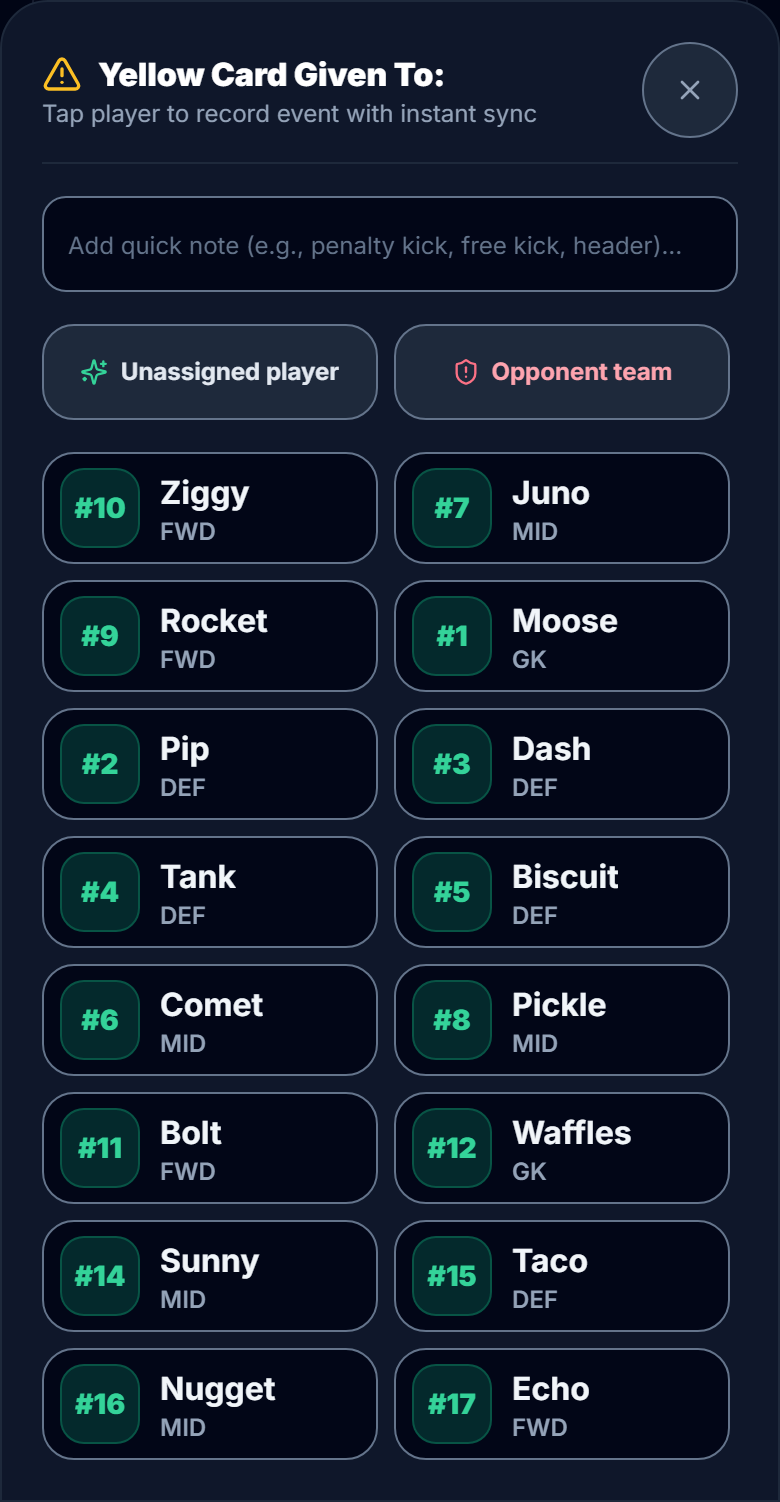
There is no red card button. For a red card, record a yellow, then open it from the timeline with the pencil and change Type to Red card (see the next section).
Undoing a mistake: five seconds, then the timeline
The common mistake is the right event on the wrong player, and you notice straight away. After each goal, shot, corner, save or card, a bar at the bottom shows UNDO for five seconds; it takes that event back.
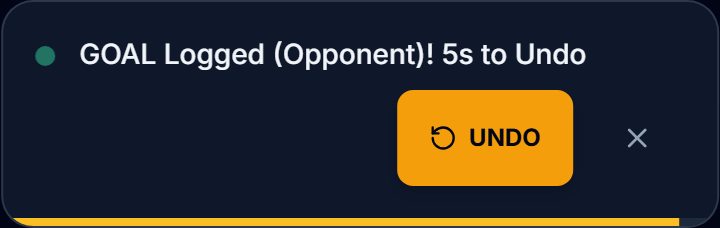
After the five seconds, use the Match Timeline at the bottom of the tracker:
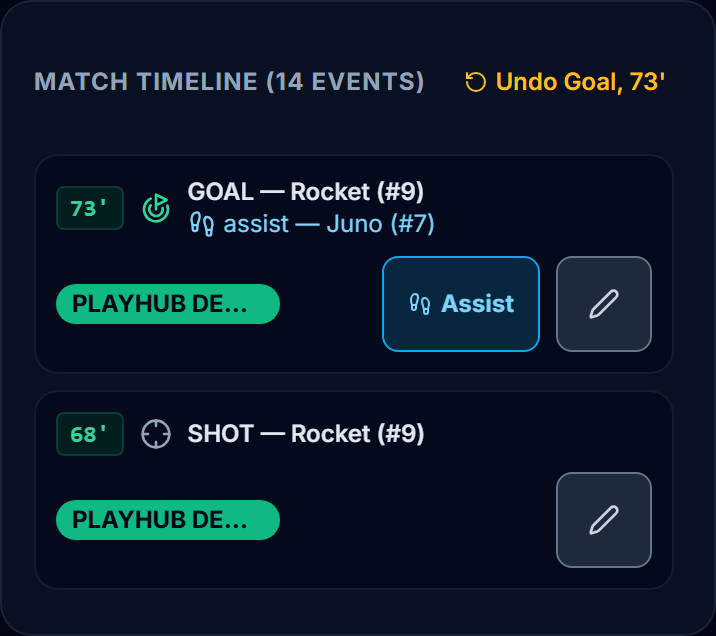
- Undo, with the event's name and minute (for example Undo Goal, 73'), sits at the top of the timeline when the newest event is one you recorded on this phone, and removes that event. When it isn't there, use the pencil.
- Add assist (or Assist, once one is credited) on a goal adds, changes or removes the assist.
- The pencil opens Edit match event: change the Minute, the Type, the Player or the notes, then Save, or Delete the event. An edit saves straight away, so it needs signal.
Halftime, then the second half
Press Half-Time Whistle when the referee blows for halftime. The clock stops.
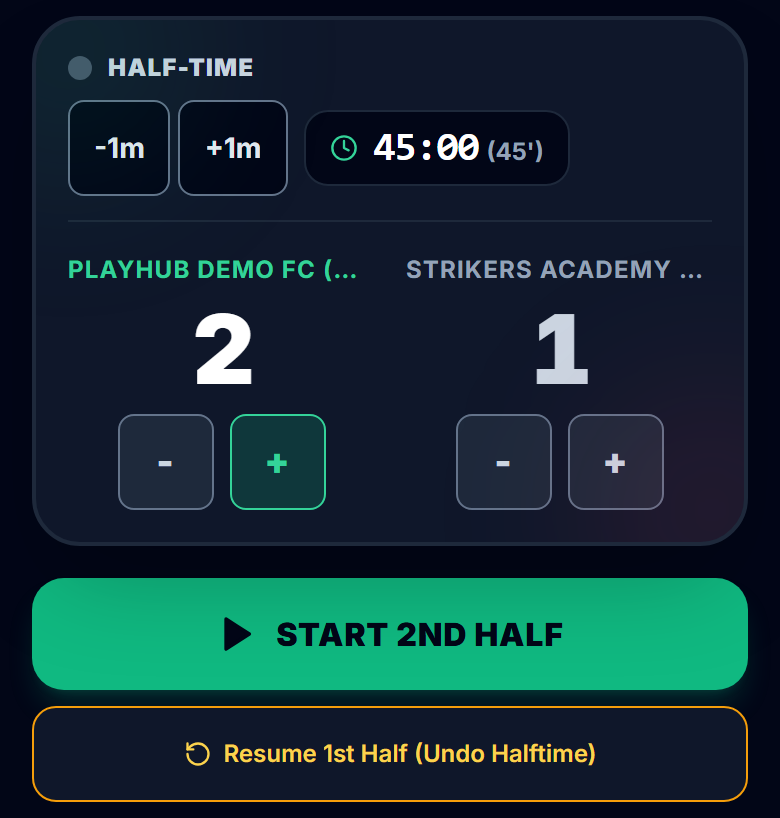
Halftime is a good time to check the score and the scorers with the coach while everyone still remembers them. Fix anything from the timeline.
Press START 2ND HALF on the whistle. The clock carries on from where the first half stopped, so a second half after 25-minute halves starts at 25:00. Pressed halftime too early? Resume 1st Half (Undo Halftime) takes it back.
Overtime or a shootout, briefly
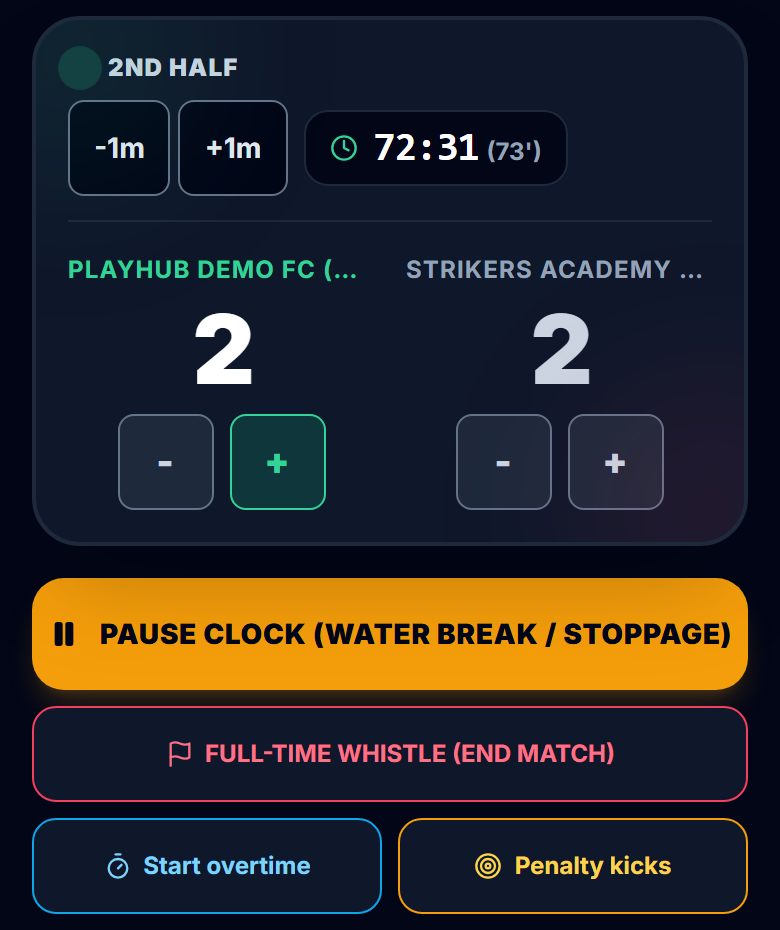
If the game goes to overtime or kicks from the penalty mark, the second half has two more buttons for it.
- Start overtime carries the clock on from the end of the second half. Overtime 2 stops it until you start the second period. Full-Time Whistle ends the game in overtime.
- Penalty kicks swaps the scoring buttons for a shootout pad: Scored or Missed for each team, and Kicker (optional) for yours.
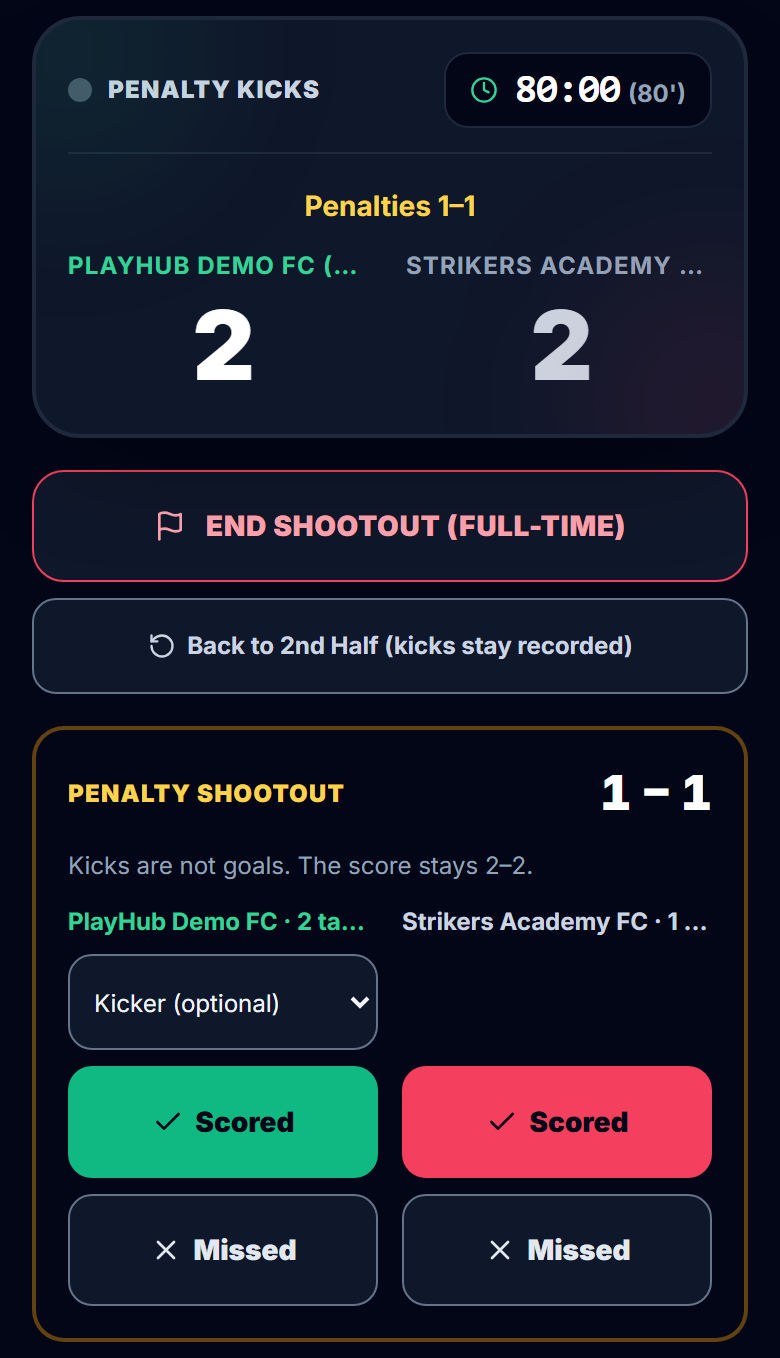
Kicks are not goals. The score stays where the game left it, and the result reads like "2–2, won 4–3 on penalties". Press END SHOOTOUT (FULL-TIME) when it's decided. A shootout counts as a draw in your season record.
Full time
Press FULL-TIME WHISTLE (END MATCH) on the final whistle. Families who switched on match emails get the result.
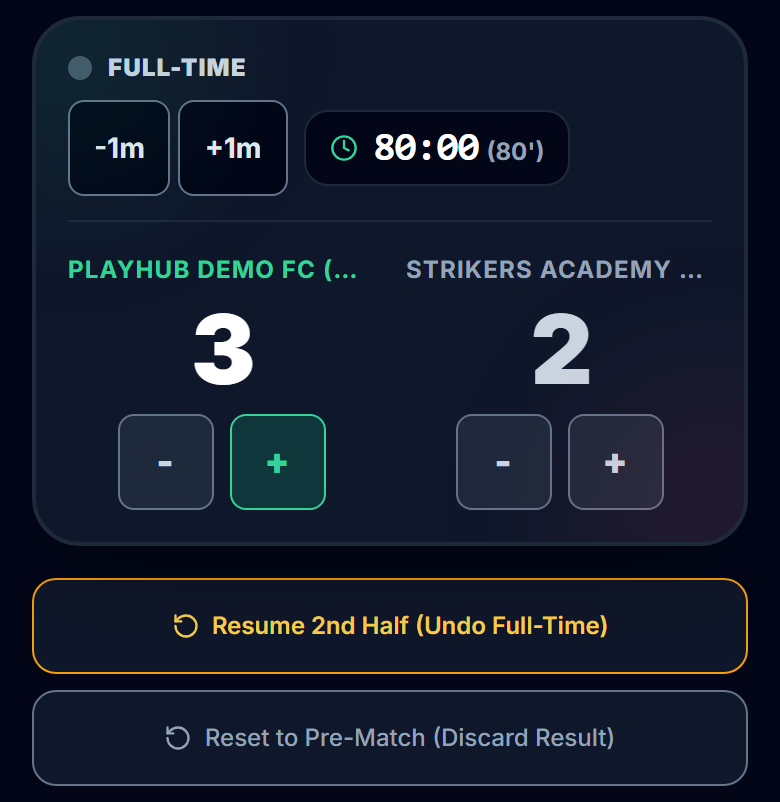
Whistled too early? Resume 2nd Half (Undo Full-Time) reopens the half. Reset to Pre-Match (Discard Result) is only for a game that should never have been tracked: it deletes the score and every event, and asks you to confirm first.
The recap
A short written recap opens by itself at the final whistle, built from what you recorded: the score, who scored, and when.
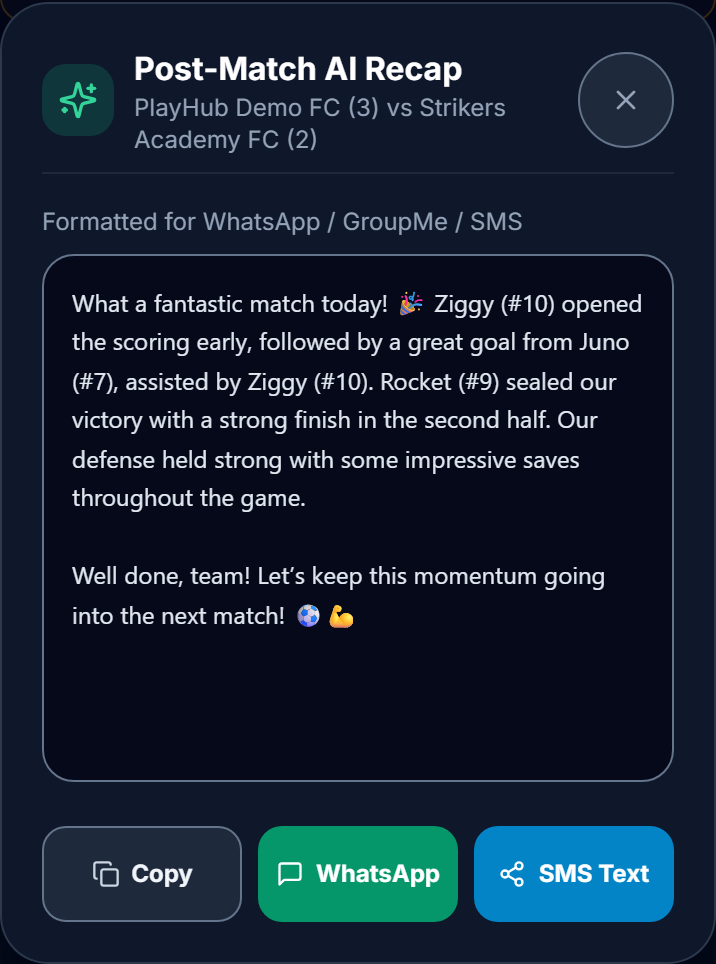
Copy, WhatsApp or SMS Text sends it to the team chat. Editing the text here changes only the copy you send. The same recap appears on the match page under the score, and goes in the full-time email too if it's ready within a few seconds of the whistle. Closed it too soon? Press the eye button at the top of the tracker, which opens the family page, and choose Read the full recap.
What families see
Families you've invited by email sign in and follow in a browser, with nothing to install. They see the clock, the score and each event as you tap it.
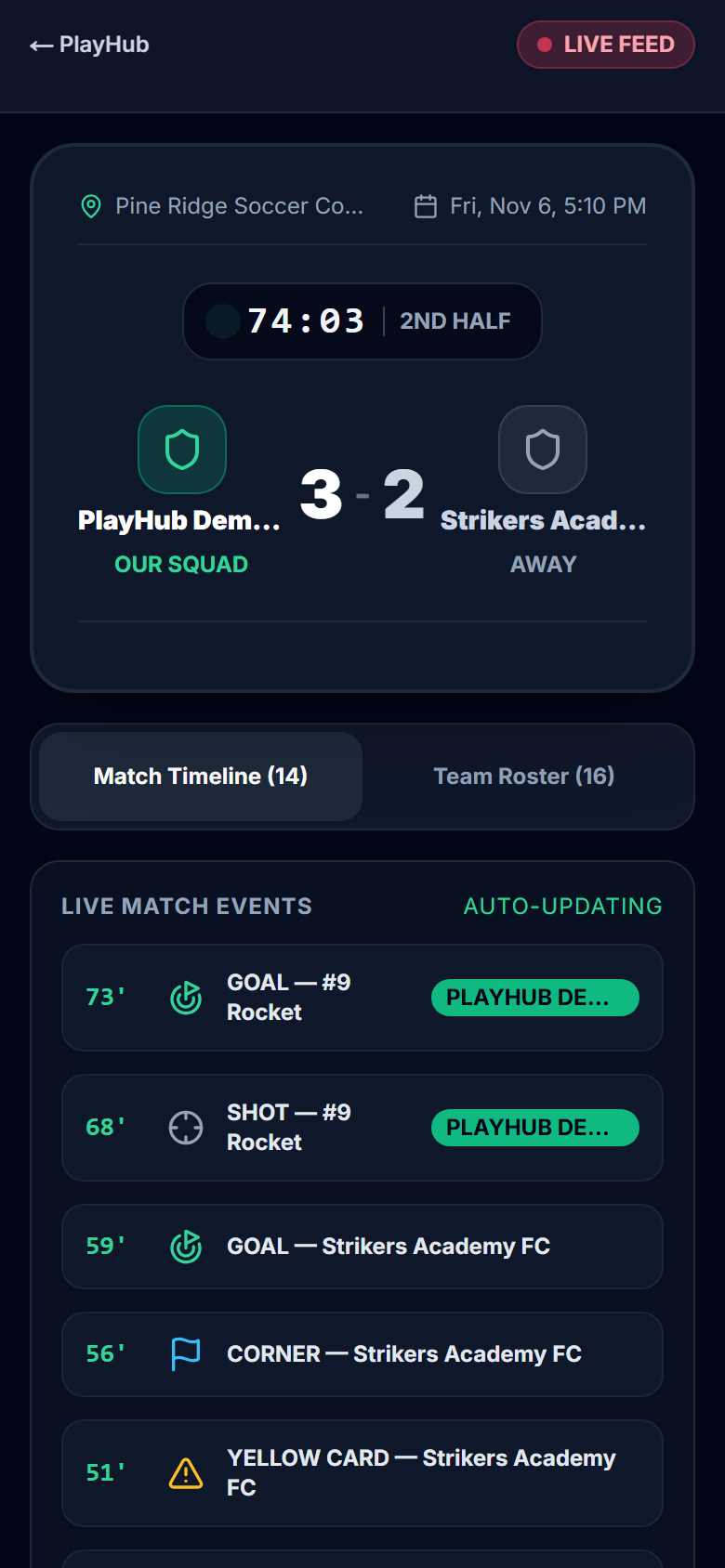
An undo or an edit changes their page too. You can watch the demo match without signing in. Setting up the family side: how to let family follow a youth soccer game live.
What if...
What if the signal drops?
Keep tapping. The pill at the top turns amber and reads Offline with a count of what's waiting. Everything you record is saved on the phone and sent when the signal comes back, when the pill reads Syncing and then Live again. The family page catches up then. Keep using the same phone until it does, and leave edits from the pencil until you have signal.
What if I missed a goal?
Record it anyway: + GOAL and the scorer, then open it from the timeline with the pencil and set the Minute to when it went in. Ask the coach or a parent nearby for the minute and the scorer. The - and + under each score change the number only, with no goal and no scorer behind it, so use them only if the score itself is wrong.
What if I'm not sure who assisted?
Press No assist / not sure. An empty assist is easier to fix than a wrong one, and you can add it from the timeline when the coach tells you at halftime. The NCAA's statisticians' manual, the most detailed published convention, credits an assist "in the opinion of the statistician," and says "An assist is not necessarily credited to a player who makes a pass before a goal." So a pass before the goal is not automatically an assist. Its rules give no assist on a penalty kick or when the scorer won the ball from the other team. The full set, with plays scored their way, is in how goals and assists are counted. The tracker credits one assist per goal.
Futsal: the same tracker, plus team fouls
A futsal team's tracker is the same screen with a Futsal badge and a Team fouls panel under the score: one tap on a team's box for each foul the referees give as a direct free kick, a warning at five, and a fresh count in the second half. How to keep score at a futsal game walks through it screen by screen, with timeouts, the stopped clock and extra time.
Sideline cheat sheet
Screenshot this before you leave home.
| When | Press |
|---|---|
| Referee's first whistle | START 1ST HALF |
| Goal for us | + GOAL (our name), the scorer, then the assist or No assist / not sure |
| Goal for them | + GOAL (their name) |
| Shot, on target, corner, save, yellow | The button, then the player or Opponent team |
| Wrong player or event | UNDO within 5 seconds, then Undo (it names the event) or the pencil |
| Water break | PAUSE CLOCK, then RESUME |
| Clock off by a minute | -1m or +1m |
| Halftime | Half-Time Whistle, then START 2ND HALF |
| Final whistle | FULL-TIME WHISTLE (END MATCH) |
| Level, extra time | Start overtime or Penalty kicks |
| Futsal foul | Tap the team's box under the score |
| Amber pill | Keep tapping; it sends when signal returns |
A goal counts as a shot on target by itself. An empty assist beats a wrong one.
For a paper backup, the printable soccer stat sheet has the same columns. The run a match help page covers choosing who keeps score.
One payment covers the whole team. See how PlayHub works
FAQ
How do you keep score at a youth soccer game?
Record each goal as it happens: the team, the scorer's shirt number, the minute and the assist if there was one, and keep the referee's clock as your reference. Check the score and scorers with the coach at halftime and at the final whistle. Shots, saves, corners and cards are optional extras the coach may ask for.
Do I need to record the other team's scorer?
No. What matters for your team's record is that they scored, and when. On PlayHub's tracker, their goal is one tap with no scorer to pick.
Does a goal count as a shot on target?
Yes, under the NCAA's published stat rules: a shot on goal is one that ends in "a save by the goalkeeper or defending team or a goal by the attacking team." So record the goal, not the goal and a shot on target.
What should I do if I'm not sure who got the assist?
Leave it blank and ask the coach at halftime. Under the NCAA statisticians' manual, an assist is credited "in the opinion of the statistician" and "is not necessarily credited to a player who makes a pass before a goal," so a guess is worse than a blank you fill in later.
What if I lose signal at the field?
On PlayHub's tracker, keep recording. Each event is saved on the phone and sent when the signal returns, and the family page catches up then.
How is futsal scorekeeping different?
You also count each team's accumulated fouls in each half. Under FIFA's Futsal Laws 2025-26, the sixth accumulated foul in a half and every one after it gives the other team a direct free kick with no wall, or a penalty kick if it's inside the penalty area, and the count starts again at zero in the second half.
Sources
| Document | Edition / year | Link | Used for |
|---|---|---|---|
| NCAA, Soccer Statisticians' Manual | no date on the PDF; downloaded and text-extracted 2026-11-06 | https://s3.amazonaws.com/fs.ncaa.org/Docs/stats/Stats_Manuals/Soccer.pdf | Section 3, Article 3, p.2 (shot on goal); Section 5, Article 1 and Philosophy, p.3 (assist "in the opinion of the statistician"; "not necessarily credited") |
| NCAA, 2026 and 2027 NCAA Men's and Women's Soccer Rules | 2026–27 (online version, updated Aug. 10, 2026); downloaded and text-extracted 2026-11-06 | https://ncaaorg.s3.amazonaws.com/championships/sports/soccer/rules/PRXSO_RulesBook.pdf | Rules 10.5.3 and 10.5.4, p.51 (no assist after a turnover or on a penalty kick) |
| FIFA, Futsal Laws of the Game 2025-26 | 2025-26, effective 5 September 2025; downloaded and text-extracted 2026-11-06 | https://digitalhub.fifa.com/m/20d52e6779b53321/original/FUTSAL-Laws-of-the-Game-2025-2026.pdf | Law 13.4, p.95 (accumulated fouls are those penalized with a direct free kick); Law 13.5, p.95 (sixth-foul kick in each period, no wall, penalty kick inside the area) |
PlayHub is not affiliated with the NCAA or FIFA.