Last reviewed
How to run a player pool: one squad, two teams, split every weekend
A player pool is one squad that trains together and is entered in the league as two or three teams. You keep one list of players and families, ask every family about every game, and decide each week who plays for which team. Families are told where their child is playing only once you publish, so nobody sees a roster that changes twice before Saturday.
This guide is for the team manager running one age group as two or three teams, and the parent helping them. It covers when a pool fits, a worked Saturday with two games, a tournament with a first and a second team, and the same steps in PlayHub with screenshots.
Pool or two separate teams?
Use a pool when the same players move between your teams from week to week, or when a tournament takes a first and a second team out of one group and not everybody goes.
Keep two separate teams when each has a fixed roster and nobody moves. Two teams that never share a player gain nothing from a pool, and their families would see games that are not theirs.
At least one state association has written the idea into policy. The Wisconsin Youth Soccer Association's Pool Roster Policy, approved by its board on April 8, 2013, let clubs register U12 and younger players to a pool and build rosters from it: "From the pool roster, clubs will have the ability to create event rosters to use for specific competitions. Event rosters are valid for the designated time period (i.e. one day or one weekend)." That is one state association's policy from 2013. Whether your league lets a player play for more than one of your teams, and how many times, is set by your league or state association, so check its rules before the season.
A worked Saturday: 16 players, two games
The pool has 16 players. Demo Gold plays at 9:00 and Demo Green at 10:30, at different gyms. FIFA's Futsal Laws of the Game 2025-26 put five on the court (Law 3.1) and say "Competition rules must state how many substitutes may be named" (Law 3.2). This league allows eight per game.
The families' answers came in by Wednesday. The manager picks on Thursday:
| # | Player | Gold 9:00 | Green 10:30 | Picked for |
|---|---|---|---|---|
| 1 | Ziggy | Yes | No | Gold |
| 2 | Juno | Yes | Yes | Gold |
| 3 | Rocket | Yes | Yes | Gold |
| 4 | Moose | Yes | Yes | Gold |
| 5 | Pip | Yes | Maybe | Gold |
| 6 | Tank | Yes | Yes | Gold |
| 7 | Pickle | Yes | No answer | Gold |
| 8 | Sunny | Yes | No | Gold |
| 9 | Waffles | Yes | Yes | Green |
| 10 | Biscuit | Maybe | Yes | Green |
| 11 | Comet | Yes | Yes | Green |
| 12 | Bolt | No answer | Yes | Green |
| 13 | Taco | Yes | Yes | Green |
| 14 | Nugget | No | Yes | Green |
| 15 | Dash | No | Yes | Green |
| 16 | Echo | Yes | Yes | Not picked |
What the table shows:
- A Yes is "can play", not "is playing". Juno said Yes to both games and plays one.
- Each answer is for one game. Ziggy can make 9:00 and not 10:30, which is why each game asks its own question.
- Picking starts with the players who can make only one game. Ziggy and Sunny can make only Gold's game, Nugget and Dash only Green's, and Pickle and Bolt answered for one game only, so they are placed first.
- Somebody may not play. Echo said Yes to both, and Gold has eight and Green seven. Whether Green takes an eighth is the manager's call, and the sheet puts that choice in front of them.
A sheet you can copy
| # | Player | Game 1: ____ | Game 2: ____ | Game 3: ____ | Picked for |
|---|---|---|---|---|---|
| 1 | |||||
| 2 |
Fill the game columns with Y, N or M from the families' answers and leave a blank for no answer. Fill Picked for last.
Tournament weekend: a first and a second team
A tournament that takes two teams from one pool is the same split, made once for the whole weekend:
- Ask once for the whole tournament. A family answers whether their child can play that weekend, not each game, because the game times often come out late.
- Decide which teams to enter from the count. Twenty yeses can be two teams; nine is one.
- Pick the same players for all of a team's games there. A player picked for both teams is worth catching before the schedule comes out: two of your teams can play at the same time.
- Publish once, and tell each family which team their child is on.
Check the tournament's own rules on roster size and on a player appearing for two teams from the same club. They differ by tournament.
Doing it in PlayHub
In PlayHub a pool holds the players, their families and the training once, and each of its teams holds its own games. Families see every game of every team in the pool, marked with its team, and answer Yes, No or Maybe for each one. The steps below are for the person running the pool. The full reference is the help article on player pools.
1. Make the pool from one of your teams
Open the team, then Settings. Under Player pool, tap New pool…, type a name such as the age group, and tap Next. You are shown what will move before anything changes. Tap Create pool and add team.
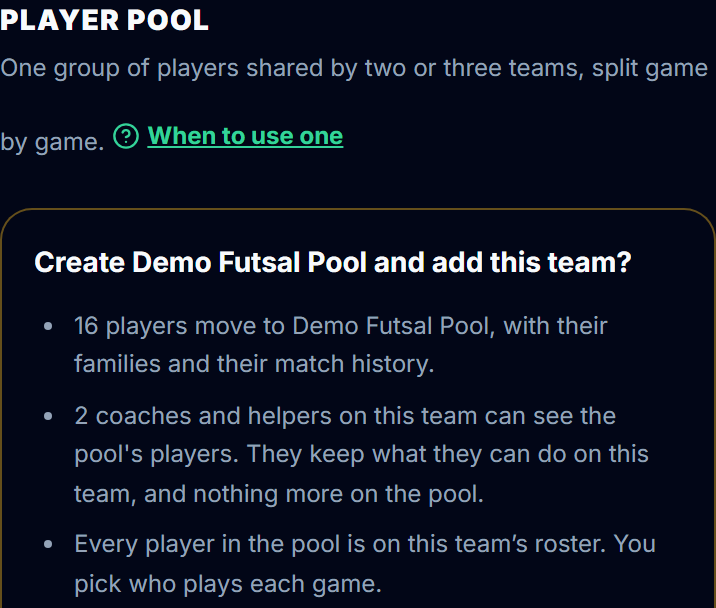
A new pool takes the team's sport and time zone. It starts with Pick a match-day roster on, and asks families about games, not training.
2. Add the other teams
Open the pool. Under Teams in this pool, tap Add a team, then New team to name one, or A team you run to bring in one that already exists. A pool holds up to ten teams.
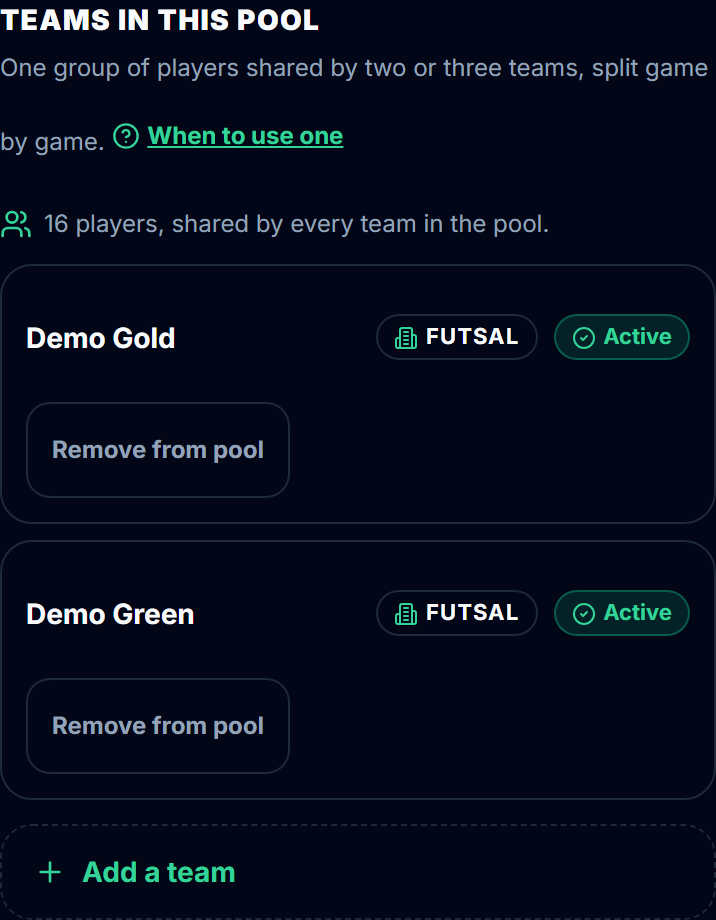
Add players once, on the pool's roster. A team in a pool has no roster of its own: every pool player is on every pool team's roster, and each week's pick decides who plays.
3. Say which team each game is for
Each team's league games go on that team, by hand or from its own league calendar link. On the pool's schedule every card is labelled with its team, Whole pool for training and tournaments, or Not assigned yet for a game nobody has taken. Tap Assign on a card to choose.
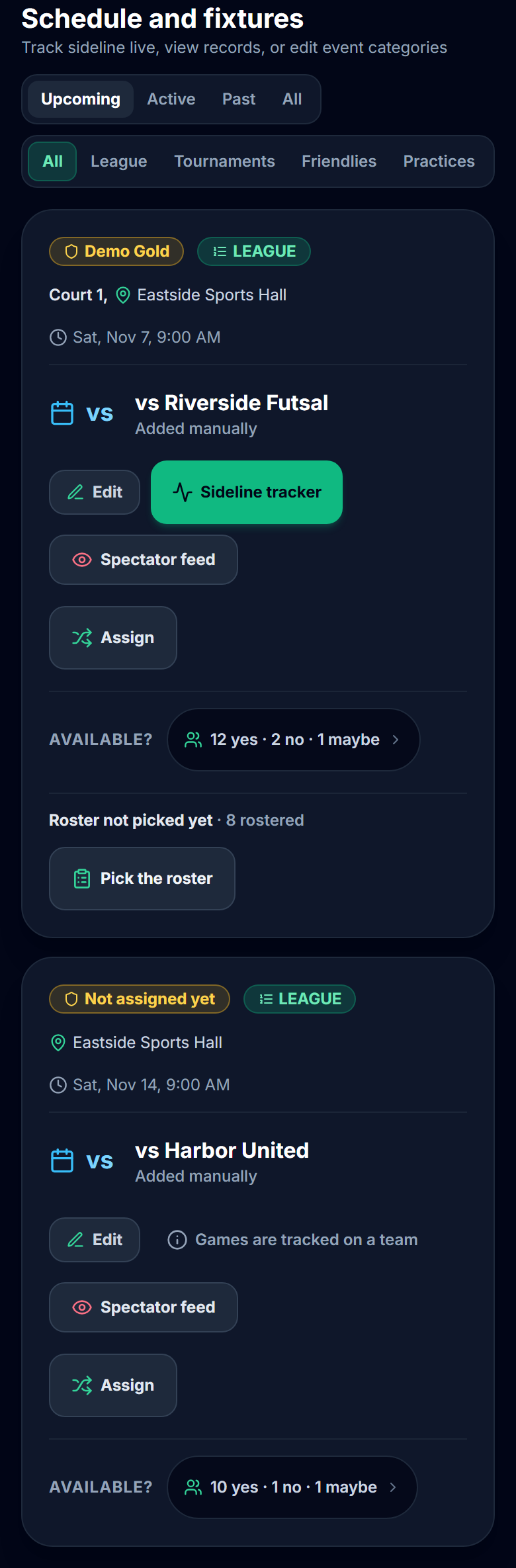
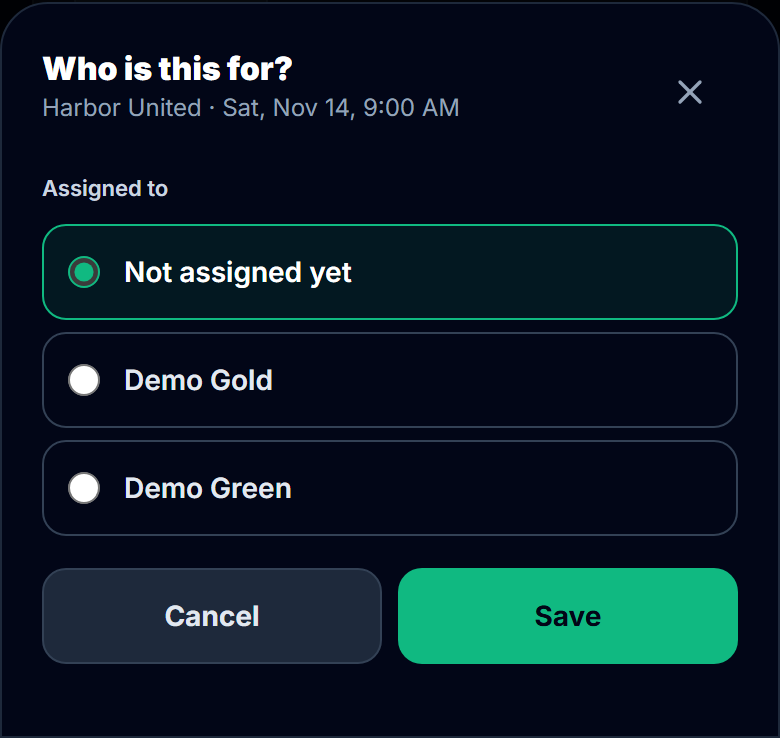
A game is given only to a team that is active in PlayHub; a team that is not shows greyed out with a link to activate it. Once a game has started, or its roster is published, it stays with its team.
4. Open the week
On the pool's schedule, tap Rosters & availability. It opens in Week: every game of the week as a column, grouped under its team, with each family's answer in every cell. Beside each player is a count for the week, such as "1 team · 1 game" or "2 teams · 2 games", so you see at a glance who is playing twice and who is not playing at all.
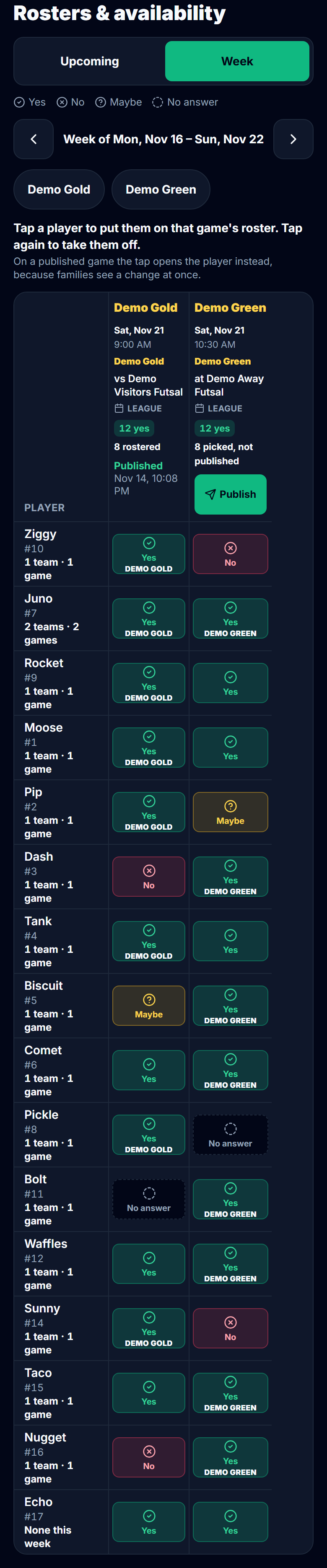
In the screenshot Green has taken an eighth player, and the manager chose Juno, who also plays Gold's 9:00 game. The count beside the name reads "2 teams · 2 games", and Echo's reads "None this week", so three questions are on screen before Publish: can Juno get to the 10:30 game, does your league let one player appear for both teams, and should Echo have had the place instead.
Only a player's own parent or guardian answers for them. Post a message to the pool asking for answers by your deadline, then read No answer on the board for the families still to answer. The rest of a winter week, from court changes to what to bring, is in how to manage a youth futsal team.
5. Pick and publish each game
Tap a player in a game's column to put them on that game's roster, and tap again to take them off. The column header counts as you go, "8 picked, not published", until you tap Publish. Families then see "Playing for" and the team's name beside their child, or "Not rostered for this game". The same switches are on each game's card under Pick the roster. The difference between an answer and a pick, and what each family sees, is in availability vs match-day roster.
Once a game's roster is published, a new message in the pool can go to "Playing for" that team and that game: it ticks the families of the players picked, and you can still change the list by hand.
At the game, whoever runs the tracker can change that game's roster from kickoff to full time, and afterwards season stats show each player's games played. A week of rosters, from the pick to game day, is worked through in club pass players and the weekly roster.
6. Enter one or both teams in a tournament
Add the tournament on the pool as an all-day event, for the Whole pool. Families answer once for the whole tournament. Then, on the tournament's card:
- Tap Enter and the team's name. The team gets the tournament on its own schedule.
- Under that team, tap Add a game for each game it plays there.
- Tap Pick players for every game to roster the same players for all of that team's games, then Publish the roster. Families get one email naming the tournament.
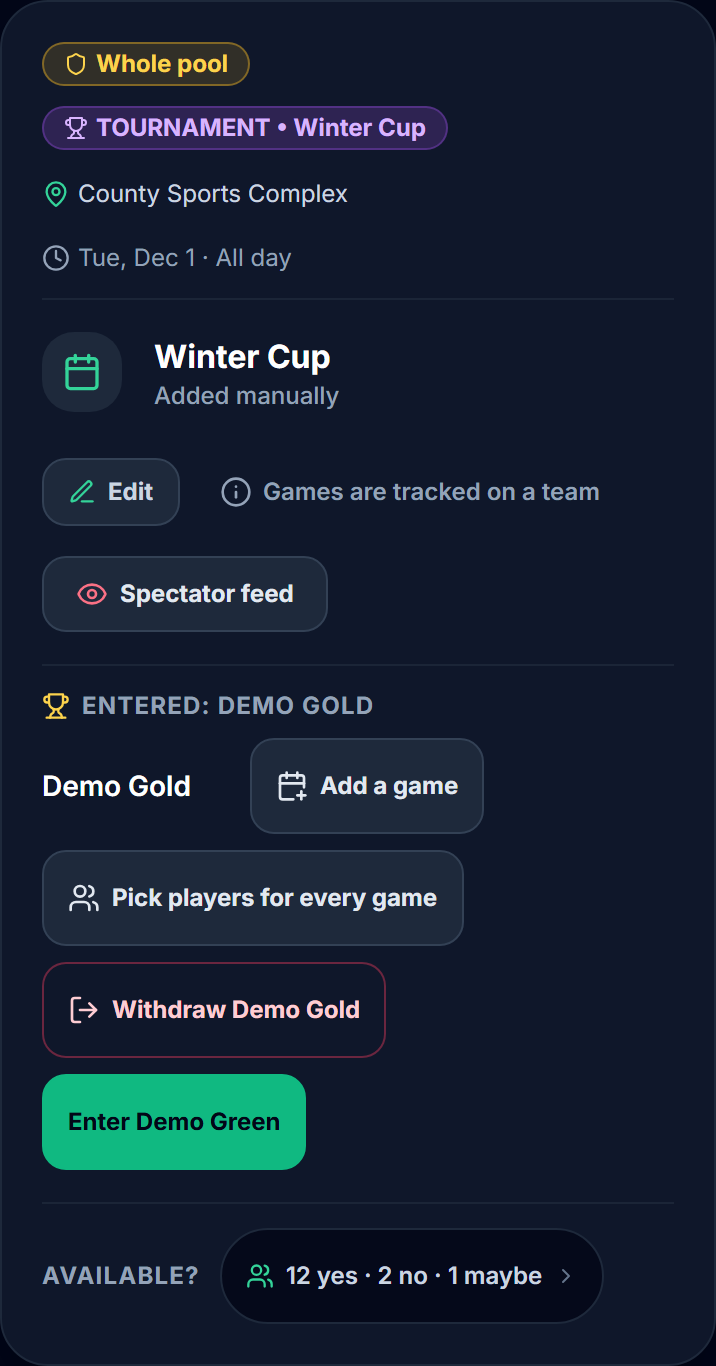
A player picked for two teams at the same tournament is marked "Also rostered for" on the roster sheet, and it still saves. Withdraw takes a team out and shows what goes with it first; once a team has played a game there, it stays entered.
One payment covers the whole team. See how PlayHub works.
FAQ
What is a player pool in youth soccer or futsal?
A player pool is one squad that trains together and is entered in the league as two or three teams. The players and families are kept once, and each week the manager decides which players play for which team. The Wisconsin Youth Soccer Association described the same idea in its 2013 Pool Roster Policy as building "event rosters" from a pool roster for "one day or one weekend".
Can a player play for both the A team and the B team?
That depends on your league or state association, not on any app. Some leagues allow it within limits and some do not. Check your league's rules on players appearing for more than one team before you split the squad. What three club pass documents allow is compared in club pass players and the weekly roster.
Does a Yes mean my child is playing?
No. A Yes says your child can play that game. Who plays is the manager's or coach's decision, and in a pool the same Yes can be on two teams' games. You find out which team your child plays for when the roster is published.
How do I split one squad into two teams for a tournament?
Ask families once whether their child can play that weekend, decide from the count whether to enter one team or two, then pick the same players for all of each team's games and publish once. Check the tournament's rules on roster size and on players appearing for two teams from the same club.
How many players should be on a futsal game-day roster?
Five play at a time under Law 3.1 of FIFA's Futsal Laws of the Game 2025-26, and Law 3.2 says "Competition rules must state how many substitutes may be named." So the number on a game-day roster comes from your league or tournament rules, not from the Laws.
Sources
| Document | Edition / year | Link | Used for |
|---|---|---|---|
| Wisconsin Youth Soccer Association, Pool Roster Policy | Approved by the WYSA Board of Directors 04/08/13, for the 2013/2014 program year; read 2026-11-03 | https://www.wiyouthsoccer.com/wp-content/uploads/sites/168/2023/06/pool_rosters_1314_-_new_logo.pdf | Pool registration for U12 and under from fall 2013; event rosters "valid for the designated time period (i.e. one day or one weekend)" |
| FIFA, Futsal Laws of the Game 2025-26 | 2025-26; read 2026-11-03 | https://digitalhub.fifa.com/m/20d52e6779b53321/original/FUTSAL-Laws-of-the-Game-2025-2026.pdf | Law 3.1 (five players), Law 3.2 ("Competition rules must state how many substitutes may be named") |
| PlayHub help, Player pools: what they are and when to use one | read 2026-11-03 | https://www.playhub-os.com/help/team-pools | The steps in PlayHub |