Last reviewed
Soccer roster and schedule templates that import and invite the families
A season starts as two lists: the schedule (every game, practice and tournament, with a date, a time and a place) and the roster (every player's shirt number and name, with one or two parent emails). Kept with the column headings below, in Google Sheets, Excel or a .csv file, both lists paste straight into PlayHub, and the roster's email columns become the invitations to each family.
This guide gives both templates, says what each column is for and what goes wrong in it, shows a filled-in example, and walks through importing both into PlayHub with screenshots. Neither list assumes your league publishes a calendar link.
The schedule template
One row per event. The first row is the column headings.
| Date | Start | End | Type | Opponent | Home/Away | Address | Field | Notes | Last day |
|---|---|---|---|---|---|---|---|---|---|
| 11/14/2026 | 9:00 AM | 10:30 AM | Game | Riverside FC | Home | Pine Ridge Soccer Complex | Field 3 | White shirts | |
| 11/17/2026 | 6:00 PM | 7:30 PM | Practice | Training | Pine Ridge Soccer Complex | Field 1 | |||
| 11/21/2026 | 10:00 AM | 11:30 AM | Game | Northgate FC | Away | Northgate Park | Field 2 | ||
| 12/5/2026 | Tournament | Winter Classic | County Sports Complex | Schedule to follow | 12/6/2026 |
What each column is for:
- Date. Month first (11/14) or day first (14/11), but the same way all the way down. A list that mixes them puts a November game in April.
- Start and End, or a length in minutes instead of an end. A game with no start time can't be scheduled; a tournament with no start time is read as all day.
- Type. Game, Practice, Tournament, Scrimmage or Friendly. "League", "match", "vs" and "@" also read as a game; "training" and "session" as a practice; "cup", "showcase" and "festival" as a tournament. A blank takes whatever you choose as the default.
- Opponent. The other team, or the tournament's name. "@ Northgate FC" reads as away and "vs Riverside FC" as home, so the next column can be left out.
- Home/Away. Home, H or vs; Away, A or @.
- Address and Field. The address families type into their maps, and the field or court number on its own. "Field 3" in its own column saves a lap of a six-field complex.
- Notes. Shirt color, arrival time, which entrance.
- Last day. Only for a tournament that runs more than one day.
A practice that repeats every week does not need a row per week; see step 2 below.
The roster template
One row per player.
| Number | Player name | Position | Guardian 1 email | Guardian 2 email |
|---|---|---|---|---|
| 10 | Ziggy | Forward | ziggy.family@example.com | |
| 7 | Juno | Midfielder | juno.home@example.com | juno.second@example.com |
| 9 | Rocket | Forward | rocket.family@example.com | |
| 1 | Moose | Goalkeeper |
What each column is for:
- Number. The shirt number. The sideline taps numbers, not names, so check them before the first game. A player whose number you don't know yet can be left blank.
- Player name. First and last name, or first name only. A column written last name first ("Smith, Sam") is turned around to "Sam Smith".
- Position. Optional.
- Guardian 1 email and Guardian 2 email. The address each parent will sign in with. The first is invited as the primary guardian, the second as a guardian. A player with no address is still added, and you can invite the family later.
Keep the roster sheet private. It holds children's names next to their parents' addresses, so share it with whoever runs the team and nobody else, and delete stray copies once the season is set up.
Doing it in PlayHub
Two imports and the families' invitations. Both imports show a preview of every row before anything is saved, and the people who run the team are the only ones offered them. The full reference is the help article on setting up a team.
1. Create the team
Create the team, choose soccer or futsal, and say whether parents answer for the players (a youth team) or the players answer for themselves (an adult team).
2. Import the schedule
On the team screen, tap Add event, then Import from a spreadsheet at the top. (On a team with nothing scheduled yet, the same button is on the empty schedule.)
- In Google Sheets or Excel, select the cells, heading row included, copy them and paste them into Paste your schedule. Or tap Choose a CSV file. Download a template gives you the columns above with two example rows.
- Tap Read these rows. The columns are guessed from your headings; change any it guessed wrong. Above the columns it says whether it read the dates month first or day first, with a button to switch.
- Read the preview. Each row says Ready, Already on the schedule, Duplicate in this sheet, or what is wrong with it in a sentence. The rest import; a row with a problem is left out.
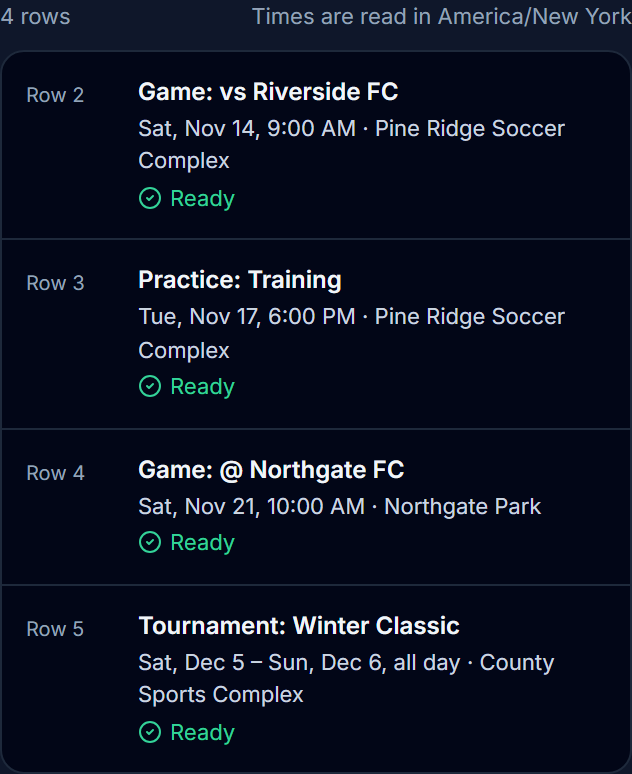
- Tap Add 4 events (the number is yours). The next screen says how many were added and skipped, and offers Undo this import, on that screen only.
Up to 200 rows go in one import. Nobody is emailed about imported events. For a practice every week, tap Add event, choose Practice, switch on Repeat weekly, and pick the days and the last date: each session is its own entry with its own Yes, No or Maybe.
3. Import the roster and invite the families
On the team screen, tap Manage roster, then Import players and guardians.
- Tap Choose a .csv file, or paste the rows under Or paste it here and tap Continue to columns. Download a template gives you the roster columns above.
- Check the columns it chose: player name, shirt number, and up to two guardian emails.
- Read the preview. Every player is listed with their number and the addresses that will be invited. Untick a row to leave it out. A player already on the roster is marked Already on the roster, so a second import does not make a second copy unless you tap Add anyway.
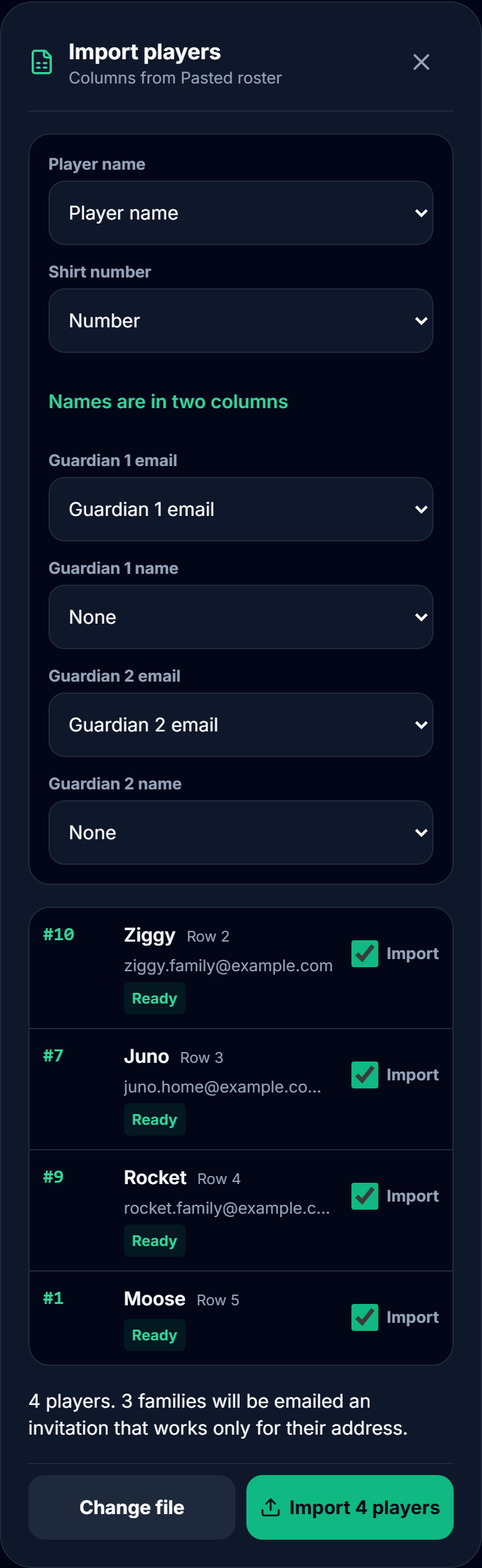
- Tap Import 4 players (the number is yours). Each family with an address gets an email. The invitation works only for the address it was sent to, so a forwarded email cannot link the wrong person.
Up to 60 players go in one import.
4. What the families do
A parent opens the invitation and signs in with that address. From then on they see the schedule, answer Yes, No or Maybe for their own child, read the team's messages and follow games live. A linked parent can invite grandparents and other family to watch the games, as how to let family follow a game live explains. Every account belongs to an adult.
5. Before the first game
Two things save a Friday-night scramble. Put somebody in each game's Scorekeeper place, or let parents volunteer: the snack and volunteer schedule guide shows how, with snacks and drivers on the same game. And if you want answers by a set day, switch on Ask families to answer by in the team's settings: tracking availability covers the routine.
What comes next, week to week, is in the team manager's weekly routine, and the season-start list in the soccer team manager checklist.
One payment covers the whole team. See how PlayHub works.
FAQ
What columns should a soccer roster template have?
Shirt number, player name, and one or two parent email addresses, with position if you track it. The shirt number matters most on the sideline, and the email columns are what invite each family to the team.
What columns should a soccer schedule template have?
Date, start time, end time or length, type (game, practice or tournament), opponent or tournament name, home or away, address and field. Add notes for shirt color or arrival time, and a last day for a tournament that runs more than one day.
Can I import my team's schedule from Google Sheets or Excel?
Copy the cells, with the heading row, and paste them into the schedule import, or save the sheet as a .csv file and choose it. PlayHub's import reads pasted cells or a .csv, .tsv or .txt file; it does not open an .xlsx file.
Should I put children's birthdays or addresses on the roster sheet?
Not for running a team's games. A shirt number, a name and a parent's email are enough, and every extra column is more information about a child to keep private.
Do I need my league's calendar link to set up the schedule?
No. A schedule you type or paste works the same way. If your league or club does publish a calendar link, it can keep game times in step when they change.
Sources
| Document | Edition / year | Link | Used for |
|---|---|---|---|
| PlayHub help, Set up your team and get your roster in | read 2026-11-03 | https://www.playhub-os.com/help/team-setup | The steps in PlayHub, weekly practices, the invitation |